Use your Mac from an iPad with a hardware keyboard
Last updated: November 24, 2026 · By Jérémie Aouate
Short answer
With DualMac, a hardware keyboard on the iPad types on your Mac as soon as the session opens, and Mac shortcuts such as ⌘C, ⌘V or ⌃↑ go to the Mac. iPadOS keeps Command-Tab and Command-Space for itself: DualMac sends them to the Mac from its keyboard bar, from its Shortcuts menu, or with ⌘\ once a setting is on. Without a trackpad, you point and click with your finger on the screen.
What you need
- A Mac with Screen Sharing turned on, and DualMac on an iPad with iPadOS 17.6 or later. The setup is in Turn on Screen Sharing on your Mac and connect from iPad.
- The iPad and the Mac on the same Wi‑Fi, or on the same Tailscale tailnet when you are away. Never open port 5900 to the internet.
- A keyboard connected to the iPad. A trackpad or a mouse is optional.
Typing on the Mac
When a session opens, DualMac takes the hardware keyboard right away: you don't need to tap the screen before typing. The iPad's on-screen keyboard doesn't appear over the Mac. Holding a key repeats it, as on a Mac keyboard.
The Keyboard button of the session toolbar, or ⌃⌥K, opens a bar of Mac keys: esc, tab, ⌃, ⌥, ⌘, ⇧, delete, return, the arrows, ⌘⇥, ⌘␣, ⌃↑ and a menu of function keys F1 to F19. Tap a modifier once for the next key, twice to lock it.
Which shortcuts reach the Mac
| Shortcut | What happens | How to send it to the Mac |
|---|---|---|
| ⌘, ⌃ and ⌥ shortcuts, such as ⌘C, ⌘V, ⌘Z, ⌘S | Sent to the Mac | Type them on the keyboard |
| ⌃↑ (Mission Control) | Sent to the Mac | Type it, or tap Mission Control in the toolbar |
| ⌘Tab (switch apps) | Kept by iPadOS, which switches iPad apps | ⌘\ with “Command–\ sends Command–Tab” on, the ⌘⇥ key of the keyboard bar, or Shortcuts › Switch apps · ⌘⇥ |
| ⌘Space (Spotlight) | Kept by iPadOS, which opens its own search | The ⌘␣ key of the keyboard bar, or Shortcuts › Spotlight · ⌘Space |
| ⌃⌥L, ⌃⌥K, ⌃⌥P, ⌃⌥N, ⌃⌥V, ⇧⌃⌘R | Used by DualMac | These are DualMac's own shortcuts, listed below |
Send Command-Tab with ⌘\
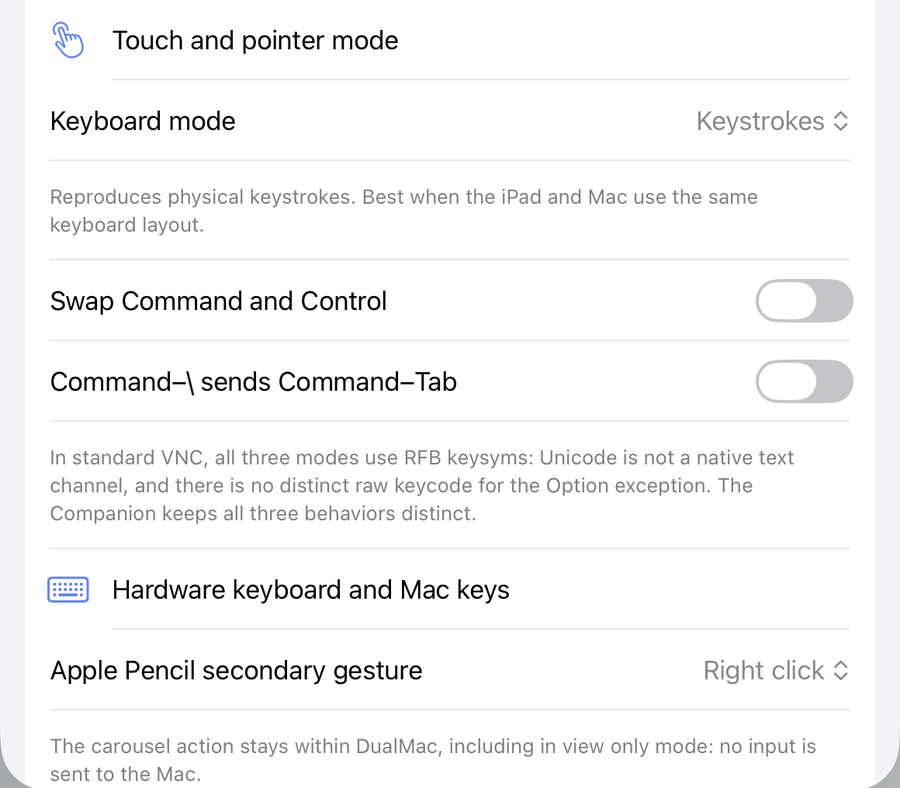
In DualMac's Settings, under Input, turn on Command–\ sends Command–Tab. Then ⌘\ on the iPad keyboard reaches the Mac as ⌘Tab. The setting is off by default.
The Shortcuts menu
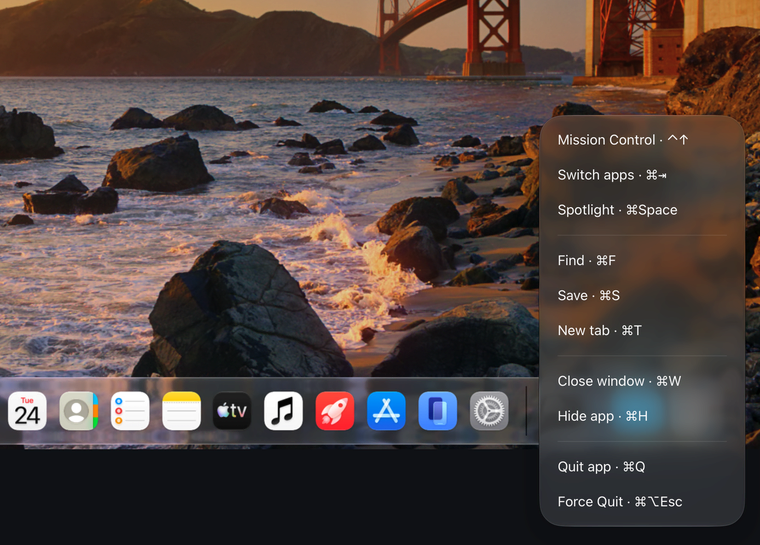
The session toolbar shows its essential buttons first. Tap More, then Show all controls, to add the others, including Shortcuts. This menu sends Mission Control · ⌃↑, Switch apps · ⌘⇥, Spotlight · ⌘Space, Find · ⌘F, Save · ⌘S, New tab · ⌘T, Close window · ⌘W, Hide app · ⌘H, Quit app · ⌘Q and Force Quit · ⌘⌥Esc to the Mac. Use it for any shortcut that doesn't reach the Mac from the keyboard.
DualMac's own shortcuts
In a session: ⌃⌥L shows your Macs and keeps the session open, ⌃⌥K shows the Mac keyboard bar, ⌃⌥P shows the tools, ⌃⌥N opens the Mac in a new window, ⌃⌥V starts dictation, and ⇧⌃⌘R captures the Mac's screen to share it. In the library: ⌘N adds a Mac, ⌘R refreshes, ⌘, opens Settings; in a session, ⌘R and ⌘, go to the Mac. The full list is in Settings › Keyboard shortcuts.
Keyboard settings
These are in DualMac's Settings, under Input.
- Keyboard mode: Keystrokes, the default, reproduces key presses and is best when the iPad and the Mac use the same keyboard layout. Unicode enters text as written and is meant for accents, emoji and different layouts. Legacy types character by character. Over macOS Screen Sharing, all three send standard VNC key codes; the optional DualMac Companion keeps the three behaviors distinct.
- Swap Command and Control: the ⌘ key of the iPad keyboard acts as ⌃ on the Mac, and ⌃ as ⌘.
- Command–\ sends Command–Tab: see above.
Pointing without a trackpad
With a keyboard alone, you point with your finger on the iPad's screen. The Input mode button of the toolbar switches between two modes, and the ⋯ menu › Input mode lists them all:
- Touch, the default: a tap clicks where your finger is, and a one-finger drag drags, for example a window by its title bar.
- Pointer: your finger moves the Mac's pointer like a trackpad, a tap clicks under the pointer, and touch and hold, then drag, drags.
- Aim: your finger places the pointer without clicking; the Click and Right buttons on the side of the screen click.
In Touch and Pointer, a two-finger tap right-clicks, a two-finger drag scrolls, a three-finger tap middle-clicks and a pinch zooms. A four-finger tap shows or hides the session controls. Three-finger swipes belong to iPadOS multitasking, so use the Mission Control button instead: tap it for Mission Control, or touch and hold it for App Exposé, Show Desktop and the previous or next Space. Pointer speed, Scrolling speed and Natural scrolling are in Settings › Input.
With a trackpad or a mouse
A trackpad or a mouse connected to the iPad moves the Mac's pointer directly. A click clicks, a secondary click right-clicks, and scrolling scrolls the Mac.
More help
- Using your Mac from an iPhone, with the on-screen keyboard: Control your Mac from your iPhone.
- Screen Sharing setup and a refused password: Turn on Screen Sharing on your Mac and connect from iPad.
- Other questions: DualMac support and DualMac facts.
Questions
Why doesn't Command-Tab switch apps on my Mac?
iPadOS uses Command-Tab to switch iPad apps. Turn on “Command–\ sends Command–Tab” in DualMac's Settings › Input and press ⌘\, or use the ⌘⇥ key of DualMac's keyboard bar.
How do I open Spotlight on the Mac from an iPad keyboard?
Command-Space opens the iPad's search. Use the ⌘␣ key of DualMac's keyboard bar, or Shortcuts › Spotlight · ⌘Space.
Can I use DualMac with a keyboard but no trackpad?
Yes. Type on the keyboard and point with your finger: in Touch mode a tap clicks where you touch, and in Pointer mode your finger moves the Mac's pointer like a trackpad.
Do I have to tap the screen before typing?
No. DualMac takes the hardware keyboard as soon as the session opens, and the on-screen keyboard stays hidden.
Can I swap the Command and Control keys?
Yes. Turn on Swap Command and Control in DualMac's Settings › Input.
Sources
- Apple Support, Learn iPad keyboard shortcuts. Checked on November 24, 2026.