Control your Mac from your iPhone
Last updated: November 24, 2026 · By Jérémie Aouate
Short answer
To see and control your Mac from an iPhone, turn on Screen Sharing on the Mac and connect with DualMac, a VNC client for iPhone and iPad. On the iPhone, a tap clicks, two fingers scroll, a pinch zooms, and the Keyboard button opens the iPhone keyboard with Mac keys such as esc, tab and ⌘. The iPhone and the Mac must be on the same Wi‑Fi, or on the same Tailscale tailnet when you are away.
What you need
- A Mac with Screen Sharing turned on in System Settings › General › Sharing. The steps, with screenshots, are in Turn on Screen Sharing on your Mac and connect from iPad; they are the same for iPhone.
- DualMac on an iPhone with iOS 17.6 or later. It needs no account, and nothing has to be installed on the Mac.
- The iPhone and the Mac on the same Wi‑Fi network, or both signed in to the same Tailscale tailnet.
- The user name and password of your macOS account on that Mac.
Add your Mac
- Open DualMac. On the same Wi‑Fi, Macs with Screen Sharing on appear in the library by themselves: tap Connect on the card of your Mac.
- If your Mac isn't there, tap + at the top of the
library, or Add by address when the library is
empty. In Add a Mac, type its address in
Address (its
.localname, its IP address or its Tailscale address), then tap Connect. - Type your Mac username and Mac password, then tap Connect. With Remember on this iPhone on, they are stored in the iPhone's Keychain.
Away from home, install Tailscale on the iPhone and on the Mac, sign in to the same tailnet, and add the Mac with its Tailscale address (step by step: Use your Mac over Tailscale). DualMac can also go through an SSH tunnel, under Advanced options › SSH tunnel. Never open port 5900 to the internet: DualMac refuses to open VNC to a public internet address and has no relay server.
Point, click, scroll and zoom
DualMac shows the Mac's whole screen fitted to the iPhone. The first time you connect, four hints sum up the gestures and fade out on their own.
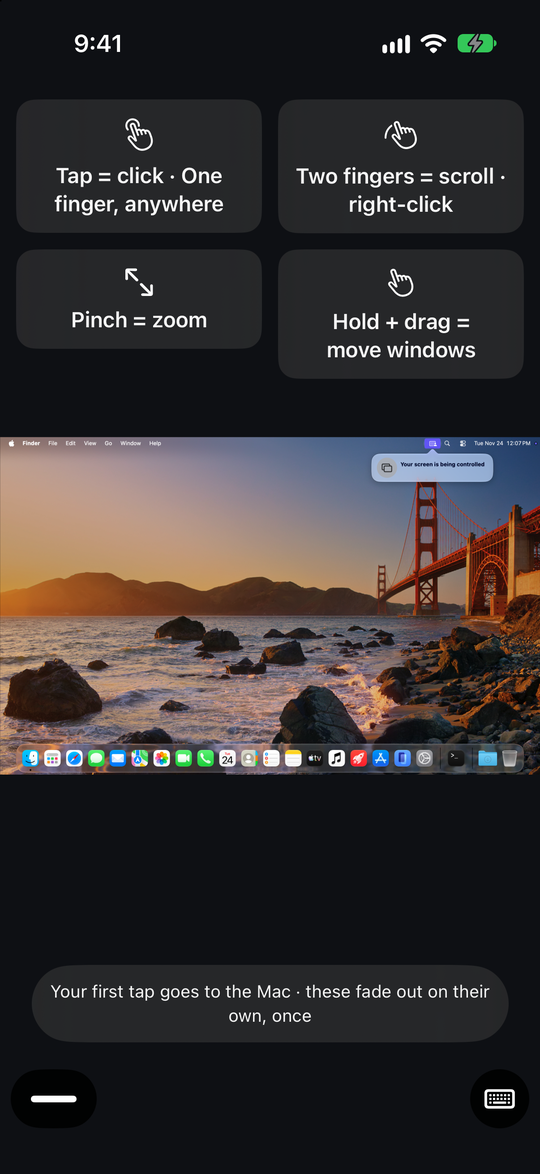
- Click: tap with one finger. Tap twice quickly to double-click.
- Right-click: tap with two fingers.
- Scroll: drag with two fingers.
- Zoom: pinch. While you are zoomed in, a small pill shows the zoom level: drag it to move the view, or tap Fit to see the whole screen again.
- Drag: in Touch mode, drag with one finger, for example on a window's title bar to move it. In Pointer mode, touch and hold, then drag.
Touch, Pointer and Aim
DualMac has three ways to aim on a small screen. The Input mode button of the session toolbar switches between Touch and Pointer. All modes are in the ⋯ menu › Input mode.
- Touch, the default: a tap clicks where your finger is.
- Pointer: your finger moves the Mac's pointer like a trackpad, and a tap clicks under the pointer. It is easier for small targets such as menu items.
- Aim: your finger places the pointer without clicking, and you click with the buttons that appear on the side of the screen: Click (hold it, then move on the screen to drag), Right, and a strip that scrolls under the pointer.
- View only: you watch the Mac and nothing you do is sent to it.
Touch, Pointer or Aim, once picked, is remembered for that Mac. Pointer speed, Scrolling speed and Natural scrolling are in DualMac's Settings, under Input.
Type on the Mac
Tapping the Mac's screen never opens the keyboard, so it doesn't cover what you are looking at. To type, tap Keyboard in the session toolbar: the iPhone keyboard opens with a row of Mac keys above it.
- The row has esc, tab, ⌘ and the four arrows.
- Its ⋯ menu adds Control, Option, Command and Shift, each with Use for next key, Lock and Release, plus Return, Delete, Switch apps · ⌘⇥, Spotlight · ⌘Space, Mission Control · ⌃↑, the function keys F1 to F19 and Release all modifiers.
- Tap a modifier such as ⌘ once for the next key, twice to lock it. To copy, tap ⌘ once, then c.
- While the keyboard is open, the Click and Right buttons stay on the side of the screen, so you can click without closing it.
- Typing preview, in the ⋯ menu, shows the last characters you typed for a moment. It is off by default.
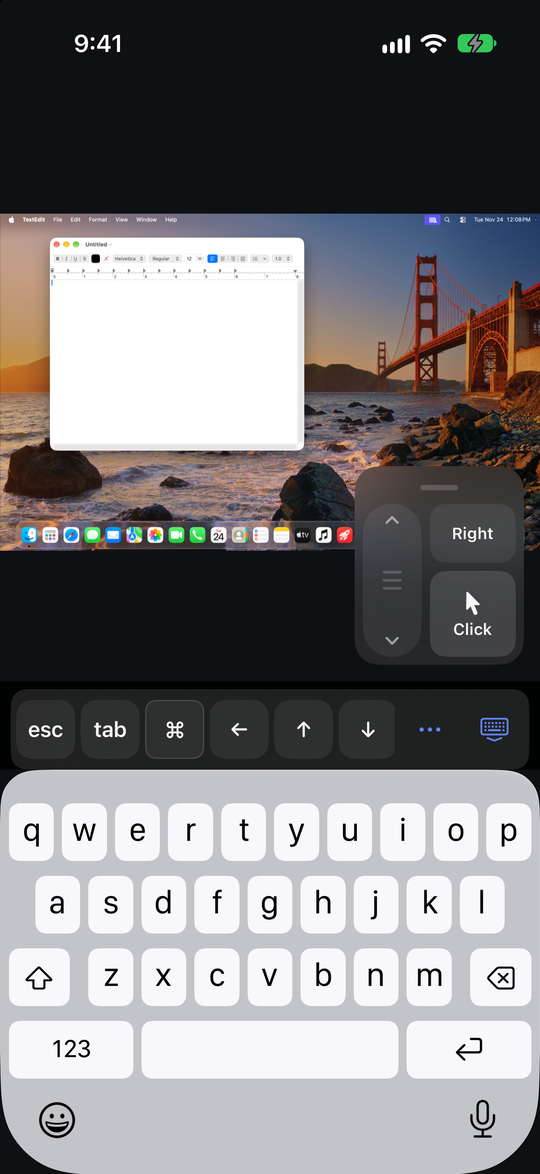
To close the keyboard, tap the hide keyboard key at the end of the row.
Portrait and landscape
DualMac works in portrait and in landscape on iPhone, and keeps your zoom when you turn the phone. Landscape shows the Mac's screen larger. The session controls hide six seconds after the session opens. Tap the handle at the bottom of the screen to bring them back. A four-finger tap also shows or hides them.
Useful buttons in a session
- Mission Control: one tap shows Mission Control on the Mac. Touch and hold for App Exposé, Show Desktop and the previous or next Space.
- Display: on a Mac with more than one display, choose which one to show. This needs the DualMac Companion; through Screen Sharing alone, all the Mac's displays arrive in one picture and the button is hidden or dimmed.
- More: Show all controls adds more buttons to the toolbar, such as Shortcuts, a menu of common Mac shortcuts.
More help
- Screen Sharing setup and a refused password: Turn on Screen Sharing on your Mac and connect from iPad.
- Typing on a Mac from an iPad with a hardware keyboard: Use your Mac from an iPad with a hardware keyboard.
- Other questions: DualMac support and DualMac facts.
Questions
Can I control my Mac from my iPhone without installing anything on the Mac?
Yes. DualMac connects to Screen Sharing, which is built into macOS: turn it on in System Settings › General › Sharing.
How do I right-click on the Mac from an iPhone?
Tap with two fingers. In Aim mode, or while the keyboard is open, you can also use the Right button on the side of the screen.
How do I type ⌘C or other shortcuts?
Open the keyboard with the Keyboard button, tap ⌘ once in the row above the keyboard, then type the letter. More shortcuts, such as ⌘Tab and Spotlight, are in the row's ⋯ menu.
The Mac's screen is too small on my iPhone. What can I do?
Pinch to zoom, or turn the iPhone to landscape. Tap Fit on the zoom pill to see the whole screen again.
Can I control my Mac from my iPhone when I'm away from home?
Yes, over Tailscale: sign in to the same tailnet on the iPhone and on the Mac, then add the Mac with its Tailscale address. Never open port 5900 to the internet.