My Mac refuses my Screen Sharing password
Last updated: November 24, 2026 · By Jérémie Aouate
Short answer
macOS Screen Sharing signs you in with the user name and password of a macOS account on that Mac, the ones you type to log in to it. It is not your Apple Account password, not your iPad or iPhone passcode, and not a VNC password. If the name and password are right, the account must also be allowed under Screen Sharing › Allow access for on the Mac.
This page covers macOS Screen Sharing with any VNC client. The labels and messages quoted are those of DualMac, the VNC client for iPad and iPhone used here. If Screen Sharing isn't set up yet, start with Turn on Screen Sharing on your Mac and connect from iPad.
Use your macOS account, not another password
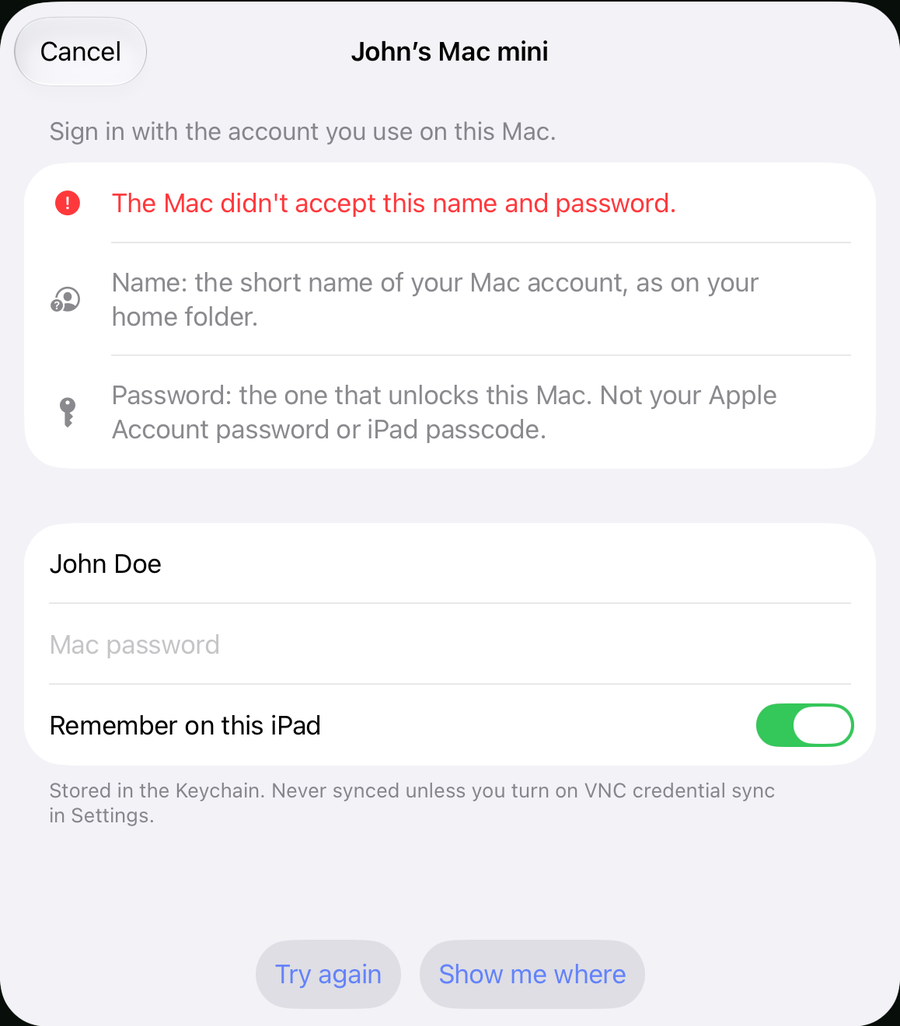
This is the most common error. When the Mac refuses, DualMac says “The Mac didn't accept this name and password.” and shows two reminders under the fields:
- “Name: the short name of your Mac account, as on your home folder.” Your home folder is the folder named after you in the Mac's Users folder.
- “Password: the one that unlocks this Mac. Not your Apple Account password or iPad passcode.” On iPhone, the reminder says iPhone passcode.
Your Apple Account password only works if you chose the same one for your Mac account. Type the name and password again, then tap Try again. With Remember on this iPad on, DualMac keeps them in the iPad's Keychain.
To check the password itself, lock the Mac and unlock it with the same password, at the Mac. If that works, the password is right, and the cause is one of the settings below.
Allow your account under “Allow access for”
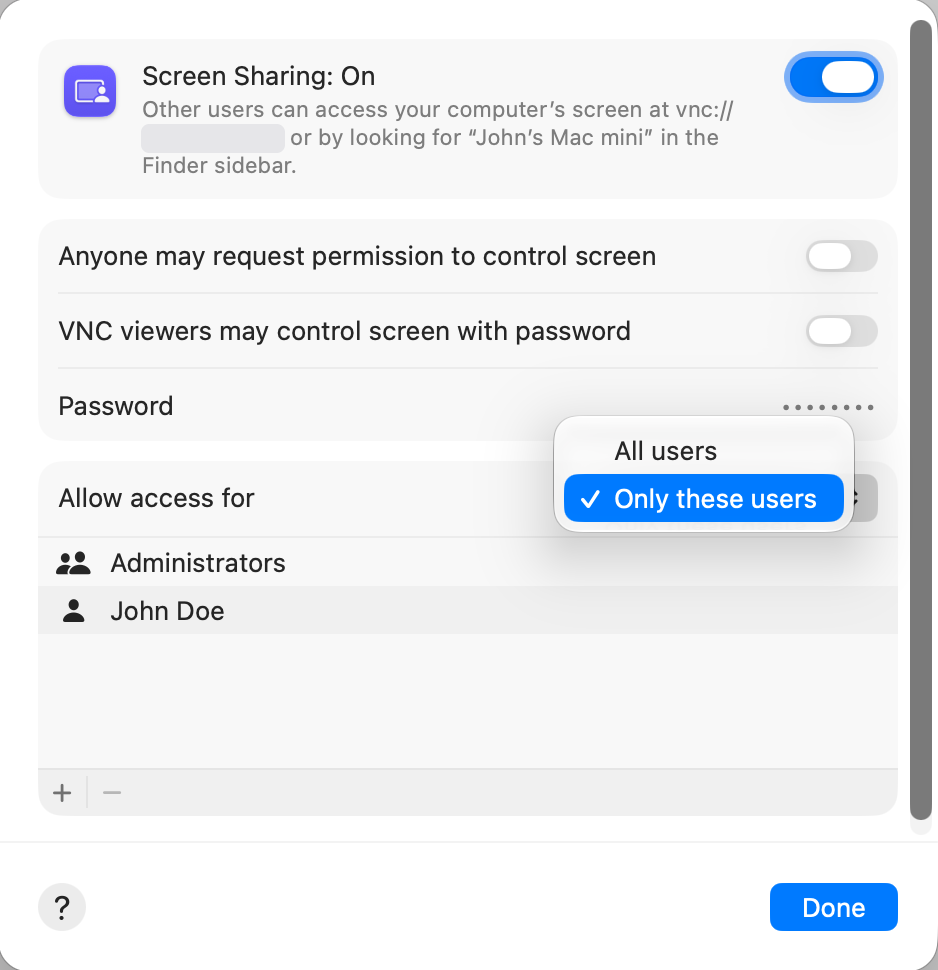
Screen Sharing can be limited to some accounts. If yours isn't one of them, the Mac refuses it even with the right password. On the Mac:
- Choose Apple menu › System Settings, click General in the sidebar, then Sharing.
- Click the info button (ⓘ) next to Screen Sharing.
- Under Allow access for, choose All users, or keep Only these users and add your account with the + button.
- Click Done, then connect again.
DualMac points to the same setting. Under the sign-in fields it says “Rejected? On the Mac, check Screen Sharing is on and that your account is listed under "Allow access for".” After a refusal, Show me where opens the in-app guide on the step “If the Mac refuses your password: allow access for all users”.
On macOS 12 Monterey and earlier, the same options are in System Preferences › Sharing › Screen Sharing.
The VNC password is a different password
In the same options, VNC viewers may control screen with password sets a separate password for other VNC apps. DualMac doesn't use it: it signs in with your macOS account, so that password is refused in the Mac username and Mac password fields. You can leave this option off.
DualMac asks only for a password
If DualMac shows a single Password field, with the line “Type the password set in this computer's VNC server.”, the computer isn't using macOS Screen Sharing but another VNC server. That server has its own password: type the one set in it. After a refusal, DualMac says “The computer didn't accept this password.” A Mac's own Screen Sharing always asks for a macOS account name and password.
Remote Management is on
Remote Management, listed under Advanced in System Settings › General › Sharing, includes Screen Sharing. Screen Sharing and Remote Management can't both be on. When Remote Management is on, DualMac should connect the same way, but the accounts allowed to connect are set in the Remote Management options, not in Screen Sharing › Allow access for. Check that your account is allowed there, or turn Remote Management off and Screen Sharing on.
The SSH sign-in is refused
This only applies if you connect through an SSH tunnel, set under Advanced options › SSH tunnel. If DualMac says that the Mac “refused the SSH sign-in”, the refused credentials are the SSH ones: “The SSH username, password or key saved for this Mac was rejected. Edit the Mac and check them under SSH tunnel.” To edit a Mac, touch and hold its card in the library, then tap Edit.
Clear credentials saved on the iPad
If you changed the Mac's password, the one saved in DualMac is out of date. Touch and hold the Mac's card, tap Edit, then Forget Keychain credentials. DualMac asks for the name and password at the next connection.
Still refused?
- If DualMac doesn't reach the sign-in step at all, see DualMac can't find my Mac.
- To find the right page from the symptom, use Why can't I connect to my Mac?
- Write to [email protected] with your iPadOS or iOS version and your macOS version.
Questions
Is the Screen Sharing password my Apple Account password?
No. It is the password of your macOS account on that Mac, the one that unlocks it. It matches your Apple Account password only if you chose the same one.
Which user name does Screen Sharing want?
The name of a macOS account on that Mac. DualMac's reminder says: the short name of your Mac account, as on your home folder.
Do I need the VNC password from the Screen Sharing options?
No. That password is for other VNC apps. DualMac signs in with your macOS account, so you can leave the option off.
Why does DualMac ask only for a password?
The computer runs a VNC server other than macOS Screen Sharing. Type the password set in that server.
Can another account on the Mac connect?
Yes, if it is allowed under Screen Sharing › Allow access for: with All users, or with that account in the list.
Sources
- Apple Support, Turn Mac screen sharing on or off, Mac User Guide. Checked on November 24, 2026.