DualMac can't find my Mac, or the Mac doesn't answer
Last updated: November 24, 2026 · By Jérémie Aouate
Short answer
Check that Screen Sharing is on and that the Mac is awake, then that the iPad or iPhone is on the same Wi‑Fi as the Mac, or that both are on the same Tailscale tailnet. Then check that DualMac has Local Network access in Settings › Apps › DualMac. If the Mac still doesn't show up, add it by its address.
This page covers macOS Screen Sharing with any VNC client. The labels and messages quoted are those of DualMac, the VNC client for iPad and iPhone used here.
What DualMac tells you
On the same Wi‑Fi, DualMac lists the Macs that have Screen Sharing on. The library says “Macs with Screen Sharing on appear here when this iPad is on their Wi‑Fi.” When a Mac doesn't answer, DualMac says that it “didn't answer” and shows one line per check, such as Screen Sharing · 5900 with No answer. Help me fix this opens the in-app guide on the first check that failed.
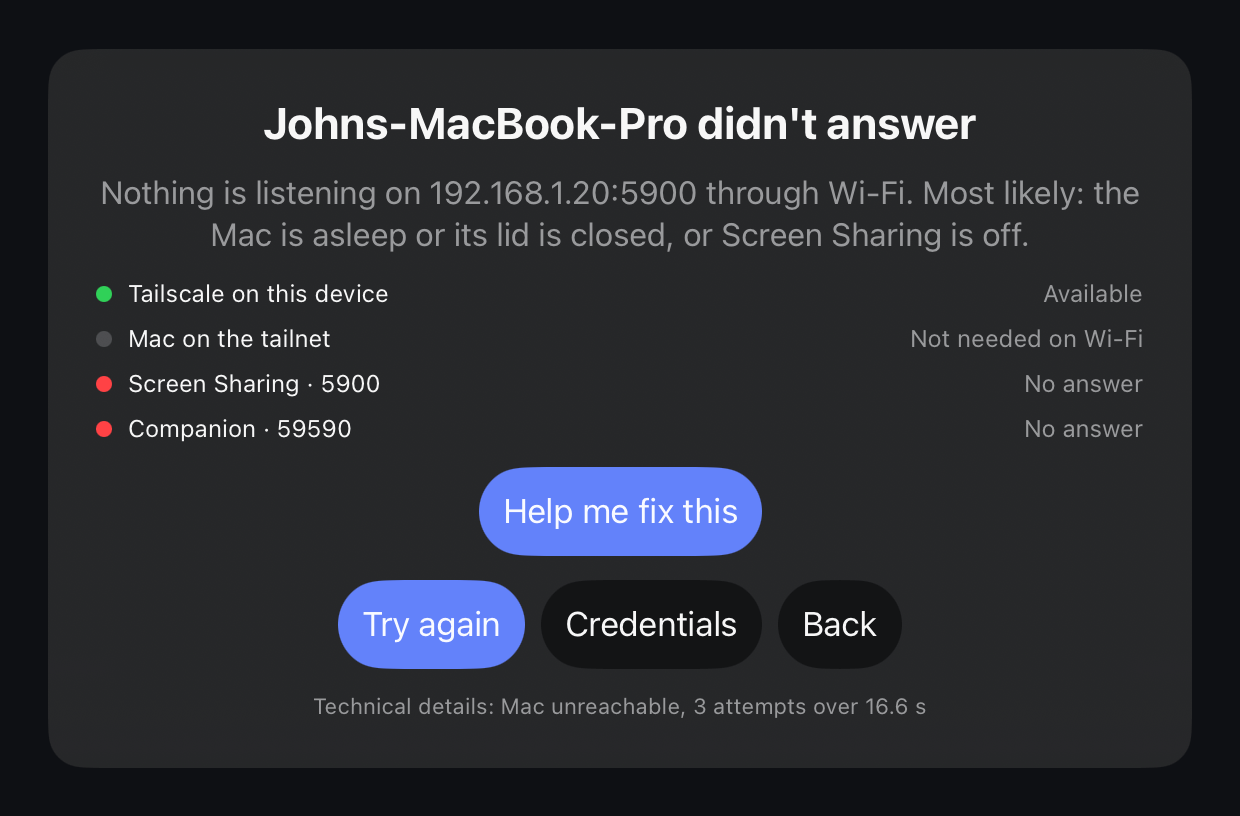
Screen Sharing is off
Without Screen Sharing, nothing on the Mac answers a VNC client. DualMac then says: “Nothing is listening on [address] through Wi‑Fi. Most likely: the Mac is asleep or its lid is closed, or Screen Sharing is off.” On the Mac, open System Settings › General › Sharing and turn on Screen Sharing. Step by step: Turn on Screen Sharing on your Mac and connect from iPad.
If it is already on and the Mac still doesn't answer, turn it off and on again.
The Mac is asleep
A sleeping Mac, or a Mac laptop with its lid closed, doesn't answer. Wake it, then keep it awake with Prevent automatic sleeping in its energy settings: see My Mac is locked, asleep or turned off.
DualMac has no Local Network access
iPadOS and iOS ask once whether an app may use the local network: “DualMac” would like to find and connect to devices on your local network. Tap Allow. If you tapped Don’t Allow, DualMac can't see or reach a Mac on the Wi‑Fi, and says “DualMac can't reach the local network”. To turn access back on:
- iPadOS 18 or iOS 18 and later: Settings › Apps › DualMac › Local Network.
- iPadOS 17 or iOS 17: Settings › DualMac › Local Network.
- On any version, Settings › Privacy & Security › Local Network lists every app that asked, with a switch for each.
When access is off, DualMac's library shows “Local Network access is off” with a button that opens Settings. A Mac reached by its Tailscale address doesn't need this access.
The iPad and the Mac are not on the same network
Check that both are on the same Wi‑Fi network, not a neighbor's, a second band with another name, or cellular data. The in-app guide warns: “Guest or hotel Wi‑Fi usually keeps devices from seeing each other, so neither the Mac nor its local hostname can be reached. Use Tailscale there.” On your home Wi‑Fi, if the Mac doesn't appear, add it by its address instead.
The Mac's firewall blocks Screen Sharing
Apple notes that sharing services turned on in Sharing settings can get through the macOS firewall. The option Block all incoming connections blocks them, Screen Sharing included. On the Mac, open System Settings › Network › Firewall, click Options, and turn that option off.
The address is wrong
To add a Mac yourself, tap + at the top of the library (or Add by address when it is empty), and type one of these addresses in Address:
- the Mac's local hostname, ending in
.local, shown at the bottom of System Settings › General › Sharing; - its IP address, shown on the Mac in System Settings › Wi‑Fi ›
Details, or after
vnc://in the Screen Sharing options; - its Tailscale address (100.x) or MagicDNS name, ending in
.ts.net.
The port is 5900 unless you changed it under Advanced options. While you type, DualMac checks the address; “No answer on 5900 — Screen Sharing off?” means that nothing answered on that port. To type the address once on a computer instead, make a link or QR code that adds your Mac.
You are away from home without Tailscale
Away from the Mac's Wi‑Fi, its local address can't be reached. DualMac says it on the Mac's card: “[Mac] can only be reached on the same Wi‑Fi. Add its Tailscale address to reach it from anywhere.” Install Tailscale on the iPad or iPhone and on the Mac, sign in to the same tailnet on both, and add the Mac with its Tailscale address: see Use your Mac over Tailscale.
- If DualMac says “Tailscale is off on this device”, open the Tailscale app on the iPad or iPhone and connect.
- On the Mac, the Tailscale icon in the menu bar must say Connected, with the same account.
- DualMac can also connect through an SSH tunnel, under Advanced options › SSH tunnel.
Never open port 5900 to the internet, for example with port forwarding on your router: Screen Sharing isn't encrypted there. DualMac refuses public internet addresses: “This address is on the public Internet, so DualMac won't open VNC to it.” The details are in the network facts.
Still not found?
- If the Mac answers but refuses your password, see My Mac refuses my Screen Sharing password.
- To start from the symptom, use Why can't I connect to my Mac?
- Write to [email protected] with your iPadOS or iOS version and your macOS version.
Questions
Why doesn't my Mac appear in DualMac?
DualMac lists Macs that have Screen Sharing on and are on the same Wi‑Fi. Check Screen Sharing, the Wi‑Fi and Local Network access, or add the Mac by its address.
Where is the Local Network setting for DualMac?
In Settings › Apps › DualMac › Local Network on iPadOS and iOS 18 and later, or Settings › DualMac on version 17.
Does it work on hotel or guest Wi‑Fi?
Usually not: these networks keep devices from seeing each other. Use Tailscale there.
Can the macOS firewall block Screen Sharing?
Yes, with Block all incoming connections turned on in System Settings › Network › Firewall › Options.
Can I open port 5900 on my router to reach the Mac?
No. Never expose Screen Sharing to the internet. Use Tailscale or an SSH tunnel; DualMac refuses public internet addresses.
Sources
- Apple Support, If an app would like to connect to devices on your local network. Checked on November 24, 2026.
- Apple Support, Change Firewall settings on Mac, Mac User Guide. Checked on November 24, 2026.
- Apple Support, Turn Mac screen sharing on or off, Mac User Guide. Checked on November 24, 2026.