Use your Mac from your iPad or iPhone over Tailscale
Last updated: November 24, 2026 · By Jérémie Aouate
Short answer
To use your Mac from an iPad or iPhone away from home, install Tailscale on the Mac and on the device, and sign in to the same tailnet on both. Turn on Screen Sharing on the Mac, then add the Mac in DualMac with its Tailscale address (100.x) or its MagicDNS name. You never open a port on your router, and the screen never goes through a DualMac server.
What you need
- A Mac with Screen Sharing turned on in System Settings › General › Sharing. The steps are in Turn on Screen Sharing on your Mac and connect from iPad.
- DualMac on an iPad with iPadOS 17.6 or later, or on an iPhone with iOS 17.6 or later.
- Tailscale on the Mac and on the iPad or iPhone, signed in with the same account, so both devices are on the same tailnet.
- The user name and password of your macOS account on that Mac.
1. Install Tailscale on the Mac
- Get Tailscale from the Mac App Store or from tailscale.com.
- Open it, allow its VPN configuration when macOS asks, then sign in in the browser.
- Click the Tailscale icon in the menu bar: it should say Connected.
The Mac App Store and standalone versions of Tailscale don't run before someone logs in to the Mac. After a restart, the Mac joins your tailnet only once a user has logged in. For a Mac that runs without a display, see Control a headless Mac mini from your iPad or iPhone.
2. Install Tailscale on the iPad or iPhone
- Get Tailscale from the App Store on the iPad or iPhone.
- Sign in with the same account as on the Mac, then turn Tailscale on.
The Tailscale app now lists your Mac with its address.
3. Find the Mac's Tailscale address
Every device on a tailnet gets an address in the 100.64.0.0/10 range,
so it starts with 100.. It stays the same wherever the
device is. You can use either of these:
- Tailscale address: click the Tailscale icon in the
Mac's menu bar, or find the Mac in the Tailscale app on the iPad or
iPhone. For example
100.101.102.103. - MagicDNS name: the Mac's machine name followed by
your tailnet name, ending in
.ts.net. MagicDNS is on by default for tailnets created on or after October 20, 2022.
4. Add the Mac in DualMac
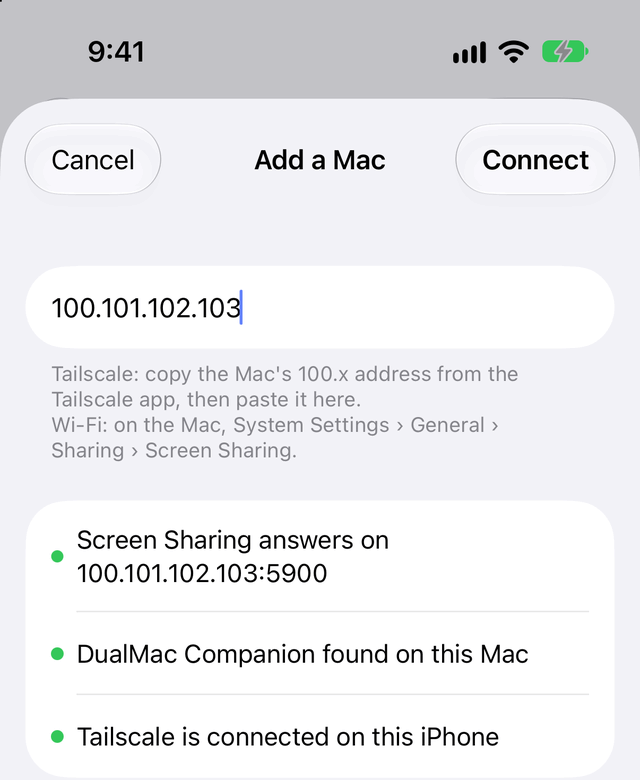
- Open DualMac and tap + at the top of the library to open Add a Mac.
- In Address, paste or type the Mac's 100.x address
or its
.ts.netname. When the field is empty, a Paste button puts in the address you copied from the Tailscale app. - DualMac checks the address as you type: it says whether Tailscale is connected on your iPad or iPhone and whether Screen Sharing answers on the Mac.
- Tap Connect, then sign in with your Mac username and Mac password.
You add the Mac once. It then works from any network where Tailscale is on: home Wi‑Fi, office, mobile data or hotel Wi‑Fi. In Add a Mac, How to set up Tailscale opens the same steps inside the app.
Optional: link your Tailscale account
You can link your Tailscale account in DualMac. Every Mac on your tailnet then appears in the library with its online status, without typing an address. DualMac reads the device list directly from Tailscale with a read-only key kept in the device Keychain. It never changes anything on your tailnet.
Why you should never open port 5900
Screen Sharing listens on port 5900. Forwarding that port on your router, or with UPnP, would put your Mac's sign-in on the public internet, where anyone can find it and try passwords. Tailscale avoids this: its 100.x addresses are not exposed to the public internet, and only devices on your tailnet can reach the Mac.
DualMac never exposes VNC (port 5900) to the internet. It refuses to open Screen Sharing to a public internet address, unless you go through an SSH tunnel, and it has no relay server: there is no DualMac server between your device and your Mac.
The other way: an SSH tunnel
If you already reach your Mac over SSH, DualMac can carry Screen Sharing through an SSH tunnel instead of Tailscale.
- On the Mac, turn on Remote Login in System Settings › General › Sharing.
- In Add a Mac, open Advanced options, then under SSH tunnel turn on Route VNC over SSH.
- Fill in SSH host, Port SSH and SSH username, then choose a password or a private key under Authentication.
The private key is stored only in the device's Keychain. DualMac remembers the key the Mac presents at the first connection and blocks the connection if it changes later.
If it doesn't connect
- Tailscale is off on the iPad or iPhone: open the Tailscale app and turn it on. DualMac checks the address again when you come back.
- Nothing answers on the Mac: most often the Mac is asleep or its lid is closed, Screen Sharing is off, or Tailscale isn't connected on the Mac. Click the Tailscale icon in the Mac's menu bar: it must say Connected.
- The Mac doesn't appear in Tailscale on the device: the two devices are probably signed in with different accounts. Sign out of Tailscale on the device, then sign in with the same account as the Mac.
- The Mac refuses the password: it expects your macOS account, not your Apple Account or Tailscale password.
Other causes: DualMac can't find my Mac and My Mac refuses my password. To add the Mac without typing its 100.x address on the device, make a link or QR code.
To keep an eye on a long task on your Mac while you are away, see Follow a long task on your Mac from iPhone.
DualMac is not affiliated with or endorsed by Tailscale.
Questions
Do I need Tailscale on the same Wi‑Fi?
No. On the same Wi‑Fi, DualMac finds the Mac or connects by its local address. Tailscale is for reaching the Mac from another network.
Should I use the 100.x address or the MagicDNS name?
Either works in DualMac's Address field. The 100.x address stays
the same wherever the Mac is; the MagicDNS name ends in
.ts.net and is easier to remember.
Can I forward port 5900 on my router instead?
Don't. It puts your Mac's sign-in on the public internet, and DualMac refuses to open Screen Sharing to a public address without an SSH tunnel.
Does my screen go through a DualMac server?
No. DualMac has no relay server: the screen goes over your tailnet, never through a DualMac server. When no direct path exists between the two devices, Tailscale relays the traffic through its own DERP servers, which forward it still encrypted and can't decrypt it.
Sources
- Tailscale, What are these 100.x.y.z addresses?. Checked on November 24, 2026.
- Tailscale, MagicDNS. Checked on November 24, 2026.
- Tailscale, Three ways to run Tailscale on macOS. Checked on November 24, 2026.
- Tailscale, DERP servers. Checked on November 24, 2026.