Can I connect to my Mac when it is locked, asleep or turned off?
Last updated: November 24, 2026 · By Jérémie Aouate
Short answer
A locked Mac: yes. Screen Sharing shows its lock screen and you type your macOS password. A Mac that is asleep or has its lid closed: no, Screen Sharing doesn't answer until it wakes, so keep it awake in its energy settings. A Mac that is turned off: no, it has to be started at the Mac.
This page covers macOS Screen Sharing with any VNC client. The labels and messages quoted are those of DualMac, the VNC client for iPad and iPhone used here.
| State of the Mac | Screen Sharing | What to do |
|---|---|---|
| Locked, display on or off | Answers | Wake the display, type your macOS password |
| Login window, nobody logged in | Answers | Pick your account, type its password |
| Just restarted, FileVault on | May not answer | Unlock the disk at the Mac |
| Asleep, or lid closed | Doesn't answer | Wake it; keep it awake from now on |
| Turned off | Doesn't answer | Start it at the Mac |
The Mac is locked
Screen Sharing keeps working on a locked Mac. You see its lock screen, or a black picture if its display is off: move the pointer or press a key to wake the display, then type your macOS password with the keyboard, as you would at the Mac. The same goes for the login window, when nobody is logged in.
DualMac can type the password for you. Touch and hold the Mac's card, tap Edit, and fill in Password to enter on the Mac, protected by Face ID, Touch ID or your passcode. In a session, choose Enter password in the ⋯ menu. More cases of a black picture are on Screen Sharing connects, but the screen is black.
The Mac just restarted
With FileVault turned on, a Mac locks its startup disk each time it starts up or restarts, and a user unlocks it in the login window with their login password. Until someone does, Screen Sharing may not answer: unlock the disk at the Mac, then connect.
The Mac is asleep or its lid is closed
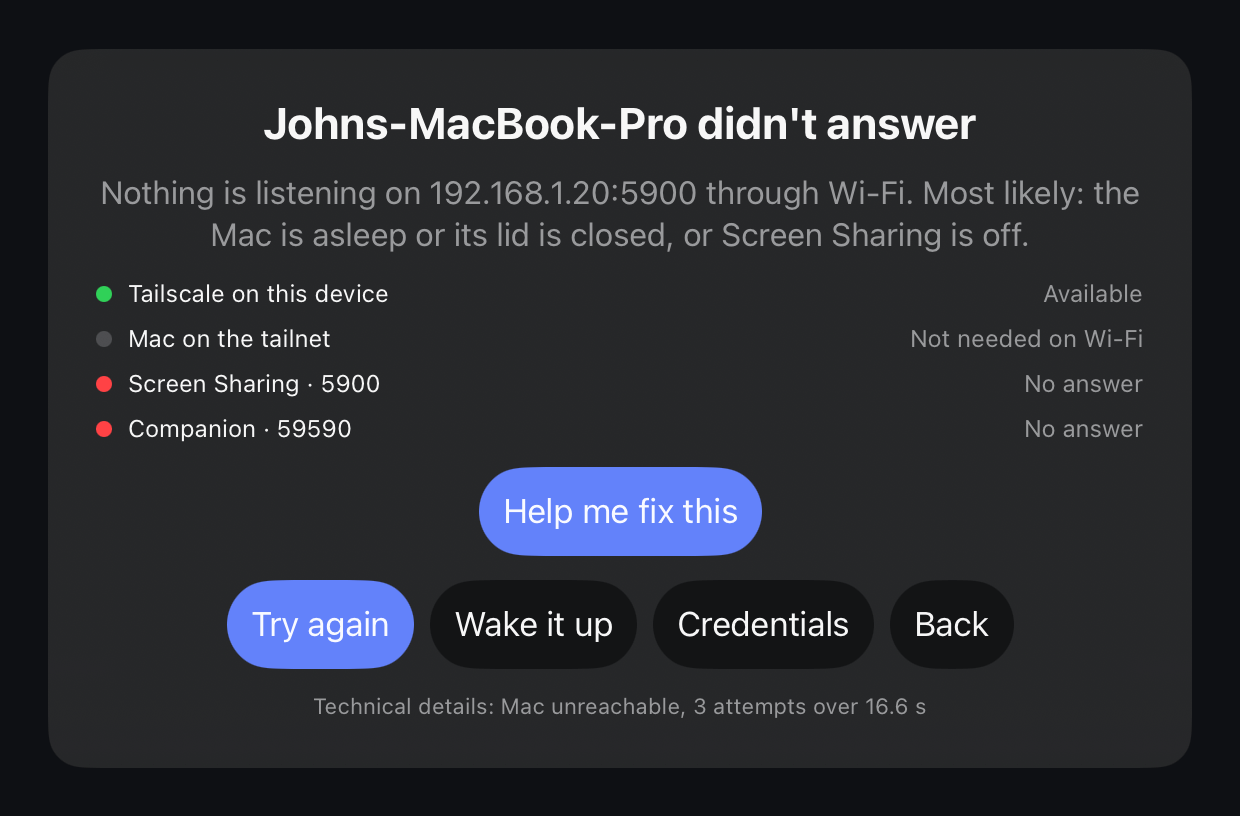
A sleeping Mac doesn't answer Screen Sharing. DualMac's in-app guide says it plainly: “A sleeping Mac, or one with its lid closed, doesn’t answer.” When you try to connect, DualMac says that the Mac “didn't answer”, and explains that nothing is listening, most likely because “the Mac is asleep or its lid is closed, or Screen Sharing is off.”
Keep the Mac reachable
A Mac can turn its display off and stay awake. That is the setting to change, on the Mac:
- Mac desktop (Mac mini, iMac, Mac Studio, Mac Pro): System Settings › Energy, turn on Prevent automatic sleeping when the display is off.
- Mac laptop: System Settings › Battery › Options, turn on Prevent automatic sleeping on power adapter when the display is off, and keep the Mac plugged in with its lid open.
Apple notes that preventing sleep may increase power consumption. Wake for network access, in the same settings, lets a sleeping Mac wake briefly to give access to shared resources; Apple's examples are printers and Music playlists, so don't count on it alone for Screen Sharing.
The Energy settings of a Mac desktop also include Start up when power is connected or Start up automatically after a power failure, which turn the Mac back on after a power cut. Some options may not be available on every Mac.
Wake-on-LAN from an iPad or iPhone
DualMac can't send the Wake-on-LAN packet from an iPad or iPhone. iPadOS and iOS only let an app broadcast on the local network with a permission from Apple that DualMac doesn't have, so the attempt from the device fails every time, with the message “This device refused to broadcast the Wake-on-LAN packet”. The Wake a computer action that DualMac adds to the Shortcuts app fails the same way.
What works: keep the Mac reachable with the energy settings above. If another Mac stays awake on the same network with the optional DualMac Companion paired, that Mac can send the packet. Set it up once for the Mac to wake:
- Touch and hold the Mac's card and tap Edit (or, for a new Mac, open Advanced options in Add a Mac).
- Under Network wake, turn on Configure Wake-on-LAN and type the Mac's MAC address, the hardware address of its network connection.
When the Mac then doesn't answer, DualMac offers Wake it up next to Try again. It asks the Companion of another Mac in your DualMac library to send the packet; without one, it tries from the iPad or iPhone, which fails with the message above.
Limits
- Wake-on-LAN gets no answer from the Mac. DualMac says “A sent packet does not confirm that the Mac woke up.”, then checks whether the Mac answers; after 30 seconds without an answer, it says that the wake is not confirmed.
- The Mac that sends the packet must be awake, run the Companion and be on the same network as the Mac to wake.
- On the Mac to wake, Wake-on-LAN relies on Wake for network access in its energy settings.
- Wake-on-LAN doesn't start a Mac that is turned off.
The Mac is turned off
No VNC client can reach a Mac that is turned off. Start it at the Mac, with the power button. If it uses FileVault, unlock the disk at the Mac too. To keep a Mac desktop available after a power cut, use the startup option in its Energy settings, described above. For a Mac mini without a display, see Control a headless Mac mini.
Other reasons a Mac doesn't answer, such as another Wi‑Fi or Local Network access, are on DualMac can't find my Mac. To start from the symptom, use Why can't I connect to my Mac?
Questions
Can I use Screen Sharing on a locked Mac?
Yes. You see the lock screen and type your macOS password, as you would at the Mac.
Can Screen Sharing wake a sleeping Mac?
No. A sleeping Mac, or one with its lid closed, doesn't answer. Keep it awake with Prevent automatic sleeping in its energy settings.
Can I keep the display off and the Mac reachable?
Yes. Turn on Prevent automatic sleeping when the display is off: the display turns off, the Mac stays awake.
Can DualMac wake my Mac from the iPad or iPhone?
Not by itself: iPadOS and iOS don't let DualMac send the Wake-on-LAN packet. Another Mac that stays awake on the same network with the DualMac Companion can send it, and a sent packet still doesn't confirm that the Mac woke up.
Can I turn on a Mac that is off from my iPad?
No. A Mac that is turned off has to be started at the Mac.
Sources
- Apple Support, Set sleep and wake settings for your Mac, Mac User Guide. Checked on November 24, 2026.
- Apple Support, Change Energy settings on a Mac desktop computer, Mac User Guide. Checked on November 24, 2026.
- Apple Support, Manage FileVault, Apple Platform Support. Checked on November 24, 2026.